
Input feedback analysis
Keyboard Latency Test
Measure browser key-to-screen feedback timing, compare samples, and spot inconsistent input response.
Live display-feedback check
Press any key to measure a sample
Run several samples in the same browser. In target mode, press the displayed key to avoid accidental input.
Recent feedback samples
0 samples- Press a key to collect local browser-feedback samples. Nothing is saved or transmitted.
What’s new in Keyboard Latency Test?
Keyboard Latency Test measures the time from a key event reaching your browser to the next available visual frame. It gives a clear session view with current feedback time, median feedback, jitter, a live sample trace, target-key mode, and private export actions.
What is browser keyboard latency?
Browser feedback timing is the visible part of input response after a key event is delivered. It is useful for comparing the same browser and system conditions, but it is not a measurement of switch travel, raw USB reports, or total hardware latency. Use it as a transparent consistency check before a typing speed test.
How to check keyboard latency at a glance
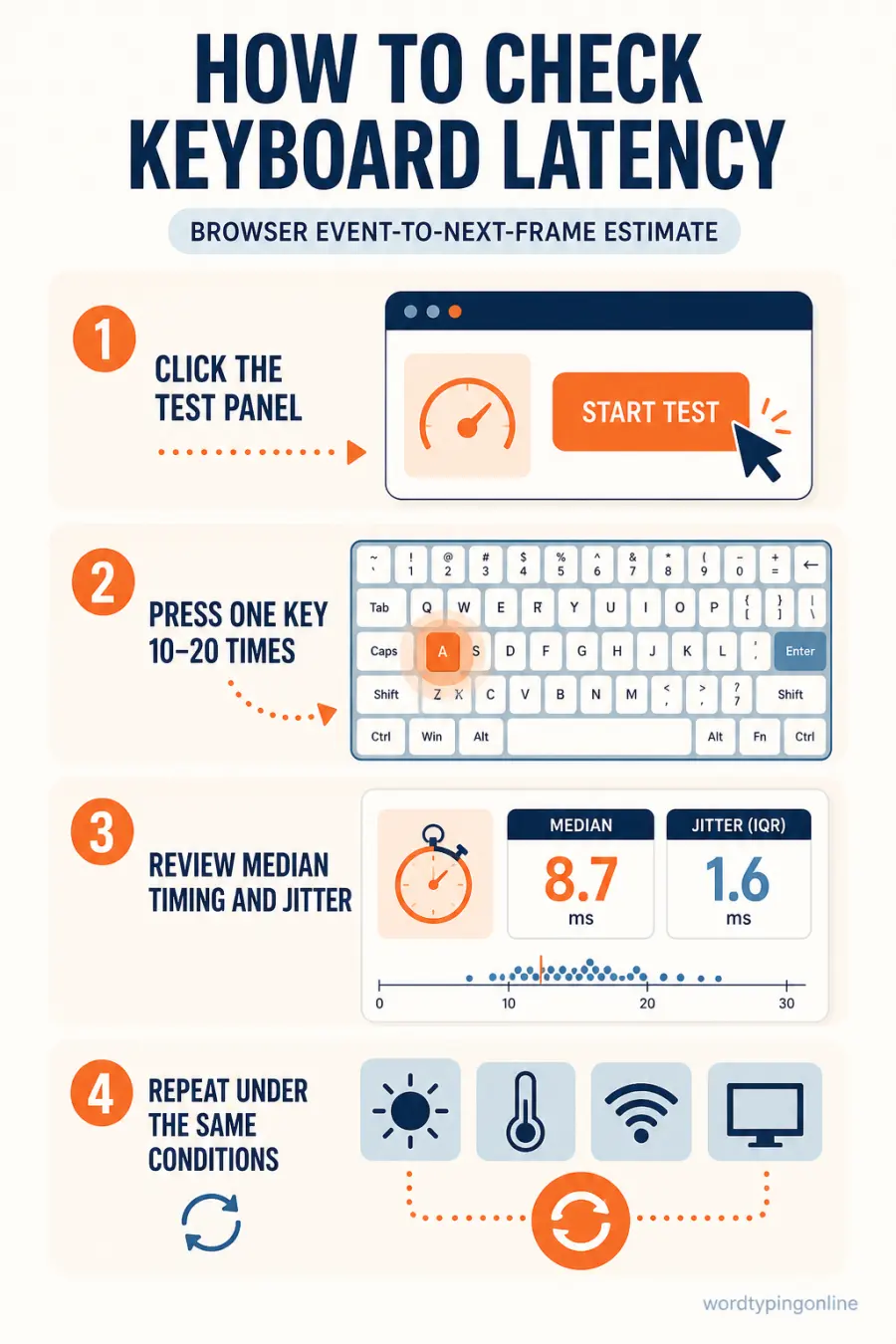
Latency feedback measures
Key-event-to-next-frame time, median timing, and jitter between samples. A median across several presses is more meaningful than a single unusually fast sample.
Latency feedback does not measure
Physical actuation, USB transport, every operating-system delay, or application-specific response. Those parts occur before or outside the browser.
Who should use this tool?
Use it when comparing keyboard setups, browser performance, display responsiveness, or a system that feels inconsistent. Students and teachers can use it as a simple introduction to input timing; advanced users can compare repeatable local sessions.
How to get useful results?
Click the panel, take 10-20 samples, and compare the median and jitter. Target-key mode helps prevent accidental input. Close demanding background apps, keep the same display and browser, and repeat the session rather than trusting one value. For key registration, use Keyboard Tester; for repeat timing, use Keyboard Polling Rate Test.
Put a responsive setup to use
Hardware checks matter most when they support skill. Develop accuracy through typing lessons, add volume with typing practice, and compare pace using the WPM Calculator. For enjoyable reaction practice, play Space Typing Shooter, Letter Rain, or Carnival Shooter.
Last updated: August 20, 2026 · Estimated time: 2–4 minutes · Best with a physical keyboard in a current Chrome, Edge, Firefox, or Safari browser.
Frequently asked questions
Can a browser measure true keyboard hardware latency?
No. It measures delivered key-event-to-next-frame feedback only.
Why do samples vary?
Display refresh, system load, and browser scheduling vary between presses.
What is jitter?
Jitter is the variation between feedback samples; lower variation means a steadier session.
How many samples should I take?
Ten to twenty samples normally provide a more useful median.
Is a wired keyboard required?
No, but a wired setup can reduce variables when troubleshooting.
Does this tool save my key presses?
No. Results remain local unless you export your own report.
What should I do after testing?
Use the homepage typing test and regular practice to turn a reliable setup into better performance.
Ready to test your typing speed?
Use a consistent keyboard setup as the foundation for measurable speed, accurate technique, and enjoyable practice across lessons and games.
Test your typing speed · Start typing practice · Try typing lessons · Play typing games