
Guided learning
Typing Lessons
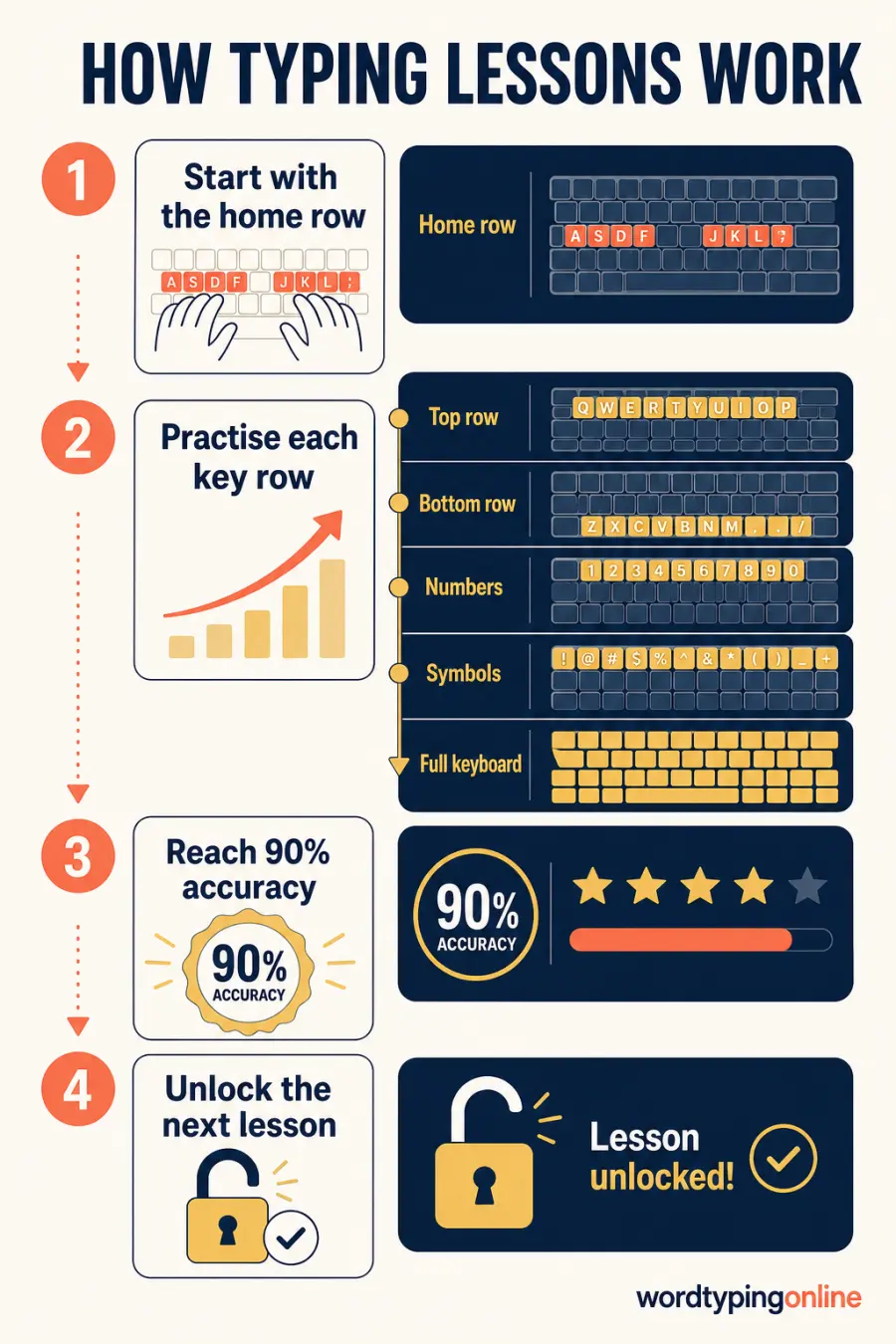
Each lesson is a focused drill. Finish with at least 90% accuracy to unlock the next exercise in this browser.
Type the drill exactly as shown.
Build keyboard confidence one lesson at a time
These free typing lessons are designed to help beginners turn careful key presses into reliable typing habits. Each lesson focuses on a small part of the keyboard, so you can learn finger placement, build accuracy, and gradually type with less effort. Rather than asking you to memorise the whole keyboard at once, the lesson sequence gives you a clear next step: practise a focused set of keys, complete the drill with strong accuracy, then unlock the next challenge. This approach works well for learners who are new to touch typing, students preparing for school work, adults returning to keyboard skills, and anyone who wants to improve typing speed without sacrificing accuracy.
Quick facts
- Estimated time: 5 to 10 minutes per lesson.
- Start with accuracy, then let speed grow naturally.
- Works on desktop, tablet, and mobile.
Who should use it?
Students, teachers, job candidates, home learners, and beginners who want guided keyboarding lessons can use this tool. It is also useful for anyone rebuilding confidence after a long break from regular computer work.
What are typing lessons?
Typing lessons are short, guided exercises that teach you where letters live on the keyboard and which fingers should reach them. A good online typing lesson is more than a random word list. It gives you a manageable goal, repeats useful movements, and provides immediate feedback before an error becomes a habit. The early lessons commonly begin with the home row because it is the resting position for touch typing. From there, you move to the top row, bottom row, numbers, symbols, and eventually full-keyboard drills. Repetition is purposeful: it helps your hands remember patterns while your eyes stay on the screen instead of searching for keys.
Key features of these online typing lessons
- Step-by-step progression from home-row typing to a complete keyboard challenge.
- Lesson unlocking based on accuracy, which encourages careful practice before moving forward.
- Focused drills for letters, numbers, and common punctuation instead of one-size-fits-all practice.
- Live typing feedback so you can notice correct, incorrect, and active characters while you learn.
- Responsive lessons that support modern browsers on computers, tablets, and phones.
- A natural path from typing lessons to typing practice, a live typing test, and beginner-friendly typing games.
How the lesson progression works?
- Choose the first available typing lesson and place your hands in a relaxed position.
- Read the key group or finger drill before you begin, then type steadily instead of racing.
- Use the character feedback to correct mistakes and keep your attention on the next key.
- Finish the drill with the required accuracy to unlock the next lesson in this browser.
- Repeat a completed lesson when a key group still feels uncomfortable, then move on when your hands feel consistent.
How this tool helps you improve?
Improve WPM
Repeated, accurate movements reduce hesitation. As familiar keys become automatic, you can type more words per minute with less strain.
Increase accuracy
Small, focused lessons make it easier to spot a weak letter pattern and fix it before errors affect your typing speed.
Build muscle memory
Consistent finger placement trains dependable movements, helping you type without looking down at the keyboard.
When should you use typing lessons?
Use guided typing lessons when you are learning touch typing for the first time, when certain letters still slow you down, or when you need a structured routine instead of random drills. They are especially useful before a typing test, after changing to a new keyboard layout, or when a teacher wants a repeatable classroom warm-up. Beginners often benefit from short daily sessions, while more experienced typists can use a lesson as a reset for problem keys, number-row accuracy, or punctuation. Five focused minutes with a clear goal is usually more valuable than a long session completed while tired or distracted.
Difficulty levels and recommended grades
Start with the first available lesson even if you already type quickly. The home-row and key-isolation drills reveal whether your fingers are doing the work efficiently. The early lessons are suitable for primary-school learners, beginner keyboarding classes, and adults building basic confidence. Middle-school and secondary learners can move through the full-keyboard, numbers, and symbols lessons as part of regular typing practice. Teachers can use the progression as a simple skill pathway: accuracy first, then longer drills, then timed practice and typing-speed checks. There is no single correct grade level for typing; the best starting point is the first lesson that feels slightly challenging but still manageable.
Tips and common mistakes to avoid
- Keep your wrists neutral and shoulders relaxed rather than reaching for keys with tension.
- Look at the screen as often as possible; peeking at the keyboard makes touch-typing habits take longer to develop.
- Slow down when accuracy falls. Fast mistakes train the wrong movement just as effectively as correct repetitions train the right one.
- Practise the lesson that targets your weak keys instead of repeating only the easiest drill.
- Take a short break if your hands feel tired, then return with a fresh and comfortable posture.
Typing lessons at a glance
Supported devices and browsers
These online typing lessons work in current versions of Chrome, Edge, Firefox, Safari, and other modern browsers. You can use them on desktop computers, laptops, tablets, and phones. A physical keyboard provides the best touch-typing experience, particularly for home-row and finger-placement practice, but supported mobile keyboard input is available for short drills. For the most comfortable lesson experience, use a screen large enough to keep the exercise visible and avoid browser zoom that hides the typing area.
Frequently asked questions
Are these typing lessons free?
Yes. You can begin the available lessons for free and use an account later if you want to save more of your progress.
Should beginners learn speed or accuracy first?
Accuracy comes first. Correct finger movements give you a dependable base, and speed follows as those movements become familiar.
How long should a typing lesson take?
Most learners benefit from five to ten focused minutes. You can repeat a drill when a key group still feels difficult.
What is the home row?
The home row is the central resting row of a keyboard. Learning it helps your fingers return to a reliable starting position between key presses.
Can teachers use these keyboarding lessons?
Yes. Teachers can use short lessons as a class warm-up, a skills check, or an independent practice activity.
Do I need to create an account?
No. Guest users can practise immediately. An account is helpful later when you want saved results and longer-term progress features.
Do lessons include numbers and symbols?
Yes. The sequence expands from letter rows to numbers, common punctuation, and a full-keyboard challenge.
What should I do after finishing the lessons?
Use typing practice to repeat real words and sentences, then take a typing test to measure your speed and accuracy in a timed session.
Ready to keep improving?
Build on your lesson progress with focused practice, a live typing test, or a short game that keeps keyboard skills engaging.
Start a free typing test · Explore typing practice · Use the WPM calculator · Play typing games