
Practice center
Typing Practice
Choose a drill, focus on accuracy, and use the same live typing feedback as the test.
Click the exercise and begin typing.
Build typing speed with focused online practice
Use this free typing practice tool to train with words, sentences, paragraphs, numbers, and punctuation. Short, repeatable sessions help you improve typing speed, increase accuracy, and build reliable keyboard confidence without rushing.
Quick facts
- Estimated session: 5 to 10 minutes
- Practice modes: words, sentences, paragraphs, numbers, and punctuation
- Works on desktop, tablet, and mobile
Who can use it?
Students, teachers, job candidates, office workers, transcriptionists, and anyone building keyboard skills can use this typing practice.
What is online typing practice?
Online typing practice is a focused way to repeat useful key patterns while receiving immediate feedback. Instead of trying to type faster all at once, you can practise one kind of text at a time and steadily make accurate typing feel natural.
Choose a typing practice mode for your goal
Words
Word typing practice is ideal for building rhythm, improving common-key accuracy, and preparing for a short typing speed test.
Sentences and paragraphs
Use longer text when you want to practise spacing, punctuation, reading ahead, and a comfortable, consistent flow.
Numbers and punctuation
Target number keys and symbols when preparing for data entry, forms, schoolwork, or tasks that need precise characters.
Why choose this typing practice tool?
- Choose the text style that matches the skill you want to improve.
- See live speed and accuracy feedback while you practise.
- Repeat short drills to build muscle memory without overwhelming yourself.
- Start immediately as a guest, then use an account when you want to save progress.
- Move naturally from practice to typing lessons, a typing test, or beginner-friendly games.
How does it work?
- Select the practice type that suits your goal.
- Choose a word count or available text option.
- Click or tap the practice area and begin typing.
- Use the live feedback to make your next session more accurate, then gradually increase speed.
Typing practice at a glance
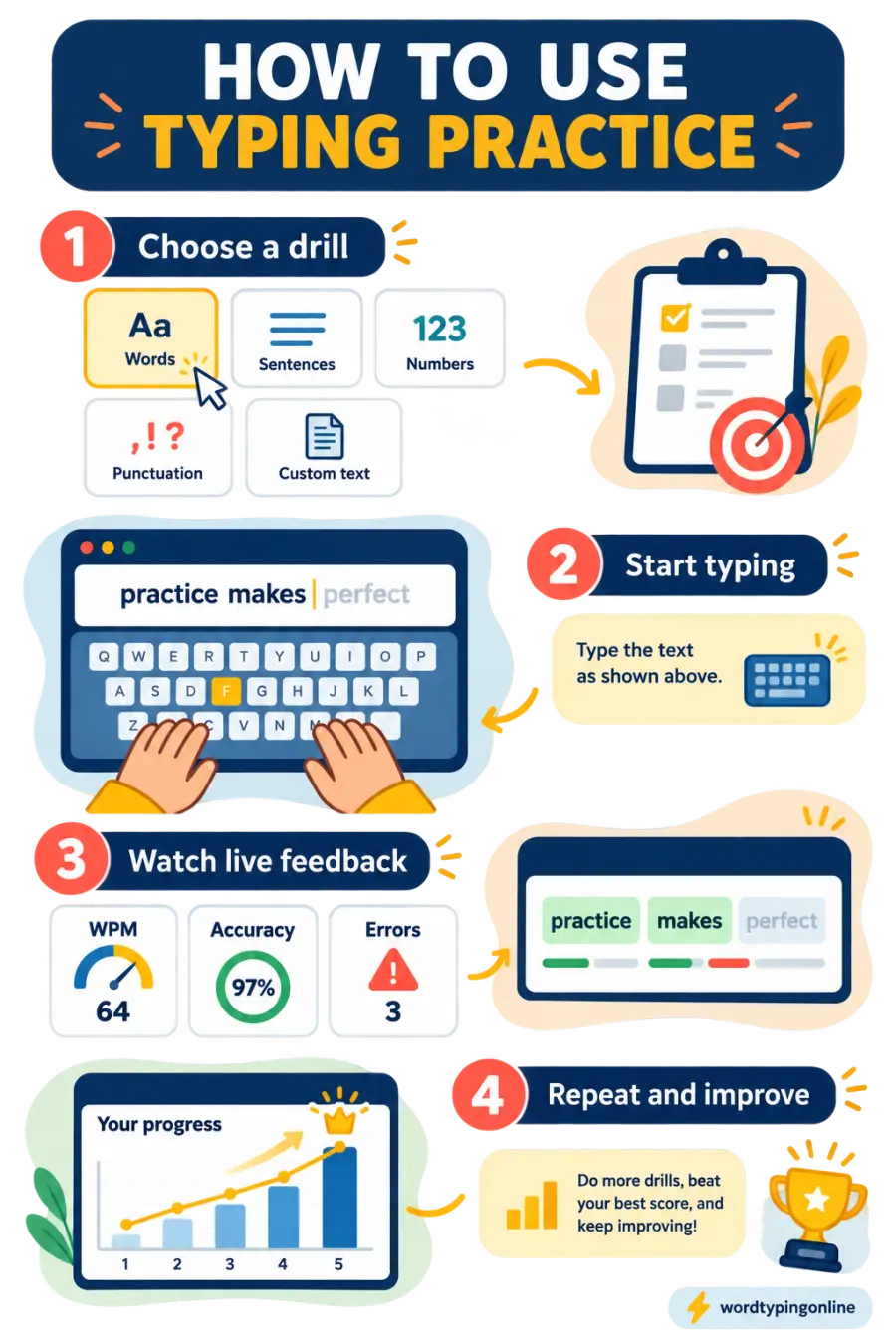
How this tool helps you improve?
Improve WPM
Frequent, focused practice makes common letter combinations easier to type and supports gradual WPM improvement.
Increase accuracy
Slowing down enough to correct repeated mistakes helps you type cleanly before you push for more speed.
Build muscle memory
Repeated keyboard practice helps finger movements become more automatic, so you can focus on the text ahead.
Prepare for real tasks
Use targeted practice before an online typing test, classroom activity, job assessment, or data-entry task.
Difficulty levels and recommended learners
Beginners should start with common words and accuracy-first practice. Intermediate typists can add sentences and punctuation, while confident typists can use longer paragraphs, number practice, and timed sessions to challenge consistency. Teachers can choose a short, focused mode for quick classroom checks.
When should you use typing practice?
Use typing practice when you want a low-pressure session before a test, when a particular key group feels difficult, or when you want to keep a daily typing habit. Five accurate minutes can be more valuable than one rushed session, especially when you practise regularly.
Tips and common mistakes to avoid
- Prioritise accuracy before speed; quick errors can become repeated habits.
- Keep your hands relaxed and use a comfortable posture instead of forcing faster movement.
- Practise the mode that matches your goal rather than using the same word list every time.
- Take short breaks if accuracy drops; tired hands and eyes make practice less useful.
- Compare your own results over time instead of chasing someone else’s WPM.
Supported devices and browsers
This typing practice tool works in current versions of Chrome, Edge, Firefox, Safari, and other modern browsers. A physical keyboard gives the best practice experience on desktop and tablet, while mobile users can still use supported keyboard input on their device.
Frequently asked questions
Is this typing practice free?
Yes. You can start practising without creating an account. An account is useful when you want to save progress and results.
How long should I practise typing each day?
Start with five to ten focused minutes. Regular, accurate practice is more useful than long sessions that cause fatigue or repeated mistakes.
Should beginners focus on speed or accuracy?
Beginners should focus on accuracy first. Speed usually improves naturally as correct finger movements become familiar.
Which typing practice mode is best for beginners?
Begin with common words, then move to short sentences. Add numbers and punctuation after you are comfortable with the main letter keys.
Can I practise numbers and punctuation?
Yes. Select the available number or punctuation option to target those keys and prepare for data entry or more detailed writing.
Does typing practice work on tablets and phones?
Yes. The page is responsive for modern devices, although a physical keyboard is best for learning traditional touch-typing skills.
Can teachers use this typing practice tool?
Yes. Teachers can use short drills for keyboard practice, warm-ups, and simple progress checks in class.
What is a good typing speed?
A good typing speed depends on the task and your accuracy. Track your own progress and aim for comfortable, reliable improvement rather than one fixed number.
Ready to practise?
Build on this session with a live typing test, guided lessons, a WPM calculation, or a quick typing game.
Start a free typing test · Try typing lessons · Use the WPM calculator · Play typing games